
Organize files from multiple folders into one project view
When a project is spread across Documents, Downloads, Desktop and OneDrive, you do not have to pick one folder and move everything into it. Add each item to a Space and keep it where it is.
5-day full trial • $19.99 one-time • Windows 10 (22H2) and 11, 64-bit
Watch three folders become one project
This is a real recording of the app, not a mock-up. Documents, Downloads and Desktop are open on the left and a ClingSpace Space is on the right. A workbook, a folder and a PDF are dragged across one at a time. Afterwards the Space lists all three while Documents, Downloads and Desktop still show the originals.
The scattered-project problem
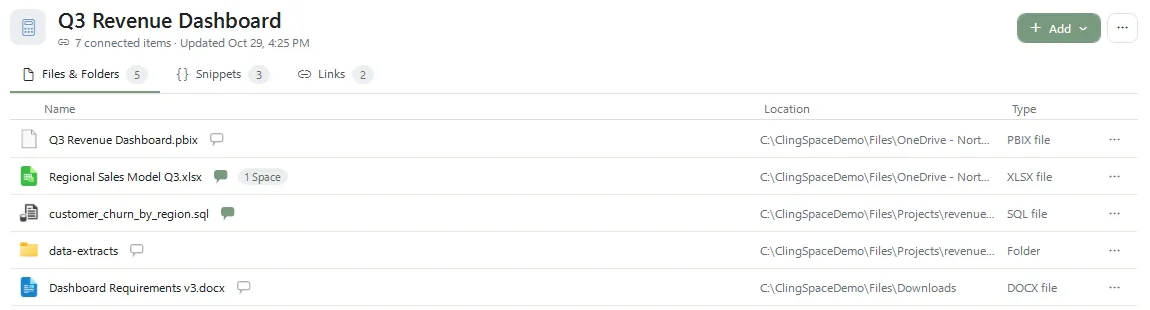
Here is how a project ends up in several folders without anyone deciding it should. A teammate emails a requirements document and it lands in Downloads. The workbook you build on top of it lives in OneDrive because that is where you keep work files. The SQL and extracts are in a Projects folder next to the code. Three folders, one project, and a different “obvious” place to look each time.
A Space turns that into a single list. The screenshot below is from the demo project and shows the actual locations beside each item.
How to bring items in
- Drag and drop. Open Explorer next to ClingSpace and drag files or folders onto the Space. Drag from as many different folders as you like.
- Or use Add. The Add menu has Files, Folder, Link and Snippet options if you would rather browse.
- Check the Location column. Each item shows where it really is, so you can see at a glance that nothing moved.
Tips for setting up a good Space
- Add folders, not every file in them. A folder is one entry. Add individual files only when they are the ones you reach for.
- Organize by outcome. A Space is for a project you want to finish, such as a board pack, a renovation or a report. It does not need to match your folder names.
- Put the entry point first. Drag the brief or the master workbook to the top and the supporting material below it.
- Add the non-file things. The link to the live dashboard and the SQL you keep rewriting belong in the same Space.
- Reuse shared files. If a file serves two projects, add it to both rather than copying it.
Mixing sources
Anything with a location on your PC can be added, whether it sits in Documents, Downloads, Desktop, a OneDrive folder or another project directory. ClingSpace records each location as it is and does not manage, sync or reorganize the source folders. If you later tidy those folders, ClingSpace can often keep following supported items; see organize files without moving them for how recovery works.
Frequently asked questions
How many folders can one Space draw from?
As many as you need. Each item keeps its own location, so there is no limit tied to where files live.
Do the original files change when I drag them in?
No. Dragging an item into a Space adds a reference. The file stays where it was and is not modified.
Can I add a whole folder?
Yes, as one item standing for the folder.
Does it work with OneDrive folders?
Yes, for files and folders that have a location on your PC. ClingSpace does not sync or upload anything.
Is the video a real recording?
Yes. It is a screen recording of ClingSpace using demo files, not an animation or mock-up.
Try it on a real project
Every feature is unlocked for 5 days. Keep ClingSpace afterwards with a one-time $19.99 license, or simply stop; your Spaces stay on your PC either way.
5-day full trial, every feature • $19.99 one-time • Direct license for up to 3 of your PCs