
How to organize files without moving them
You can group files by project without changing a single path. ClingSpace keeps a reference to each file or folder, so the project is organized and the originals are exactly where you left them.
5-day full trial • $19.99 one-time • Windows 10 (22H2) and 11, 64-bit
The idea in one example
Suppose a project involves three things. This is an example, with ordinary Windows paths:
| Item | Where it is before | In the Space | Where it is after |
|---|---|---|---|
| Budget 2026.xlsx (spreadsheet) | C:\Users\you\Documents | Listed, with its location | C:\Users\you\Documents |
| Supplier quote.pdf (PDF) | C:\Users\you\Downloads | Listed, with its location | C:\Users\you\Downloads |
| Site photos (folder) | C:\Projects\kitchen | Listed, with its location | C:\Projects\kitchen |
The last column equals the second. That is the whole point: the Space is the new thing, and the files are not.
What it looks like in the real app
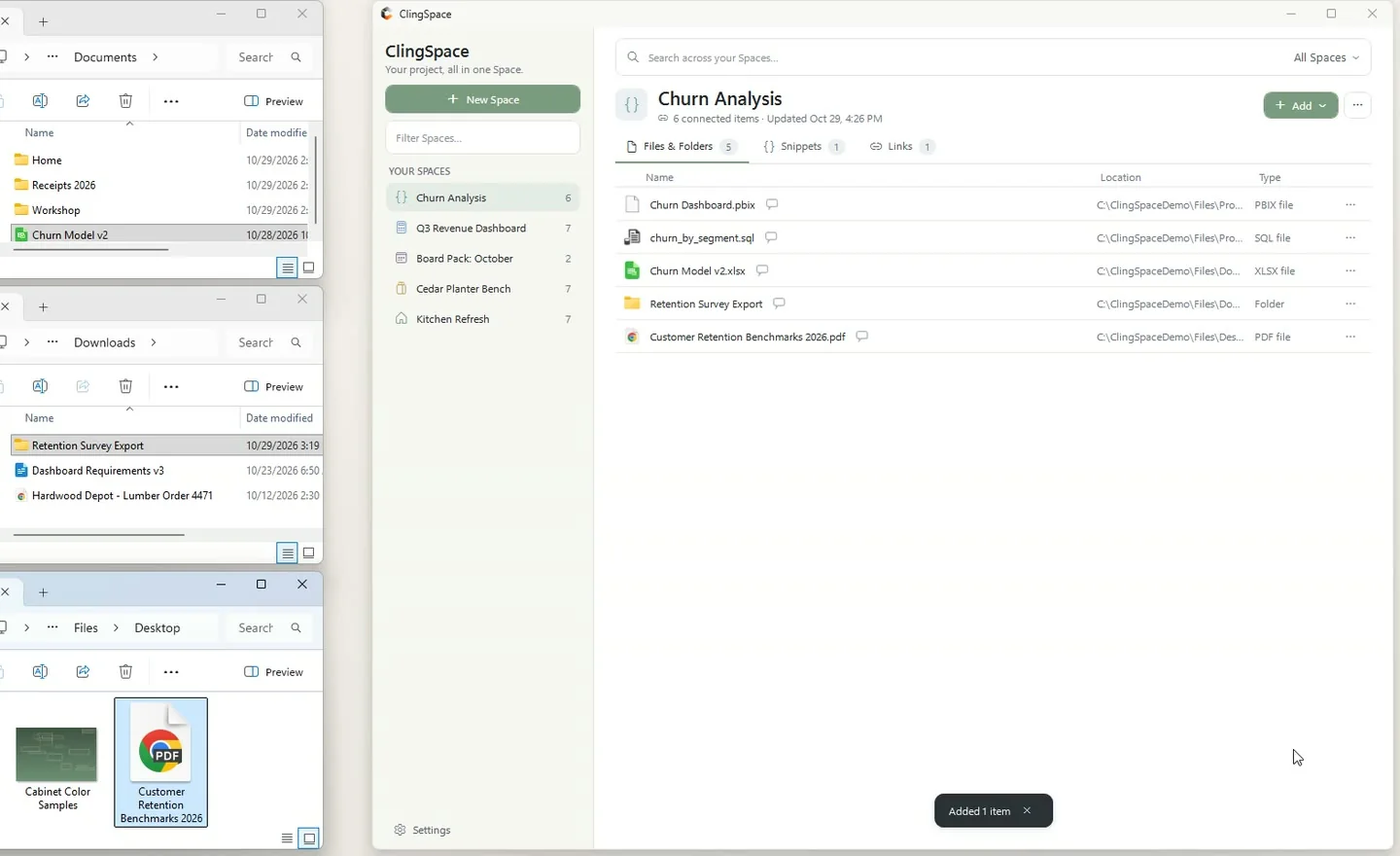
In the screenshot, three Explorer windows (Documents, Downloads and Desktop) sit beside ClingSpace. A workbook, a folder and a PDF have just been dragged in. The Space lists all three, and every original is still in the Explorer window it came from.
What “added to a Space” actually means
When you add a file or folder, ClingSpace records where it is. It does not copy the file, move it, change it or read what is inside. What you see in the Space is the project relationship: this item belongs to this project, in this position, with this note.
- Removing an item from a Space removes the reference only. The original is not deleted.
- Opening an item launches it from its real location in its usual program.
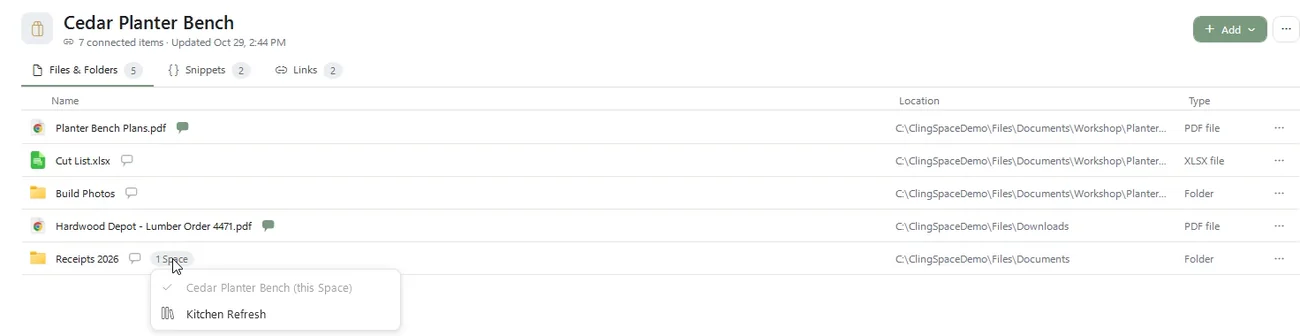
- Adding the same item to two Spaces creates two references to one file, not two files.
Why not just copy, shortcut or move?
People usually reach for one of three tools, and each has a cost:
- Copying
- Now there are two versions. They drift apart, and you must remember which one is current.
- Shortcuts
- A shortcut points at a path and tells you nothing else. It does not show where the file is, hold a note or group with other kinds of items, and it breaks if the file moves.
- Moving
- Fine when a project owns its files. Less fine when the file is in OneDrive for a reason, is used by another project, or other software expects it at the old path.
A reference gives you the grouping without any of those trade-offs. It is also the reason a file can sit in several Spaces at once.
If a file moves or is renamed later
Files do move. ClingSpace can often continue following supported files and folders after they are renamed or moved. When it cannot confidently find an item, it marks it as unavailable and offers recovery with Find File or Find Folder. If a different file now exists at the old location, ClingSpace may warn that it has changed rather than silently attaching the wrong thing.
That recovery is about the references. ClingSpace does not restore deleted files and is not a backup tool; keep backing up your documents the way you already do.
Where this approach fits
Not moving files is the right call when the files are shared with other tools or people, when they belong to more than one project, or when you simply do not want to disturb a structure that works. If you would genuinely prefer everything in one physical folder, moving files is fine and ClingSpace is not needed. For the cases in between, see how it handles files from several folders at once.
Frequently asked questions
Does ClingSpace move or copy my files?
No. It stores where each file or folder is. The originals stay exactly where they are.
What happens to the original if I remove it from a Space?
Nothing. Removing an item from a Space does not intentionally delete or change the original file or folder.
Can the same file be in two Spaces?
Yes. It is one file referenced from both Spaces, and a note attached to it follows it into each.
What if I rename or move a file in File Explorer?
ClingSpace can often keep following supported files and folders. If it cannot, the item is marked unavailable and you can use Find File or Find Folder to point it at the new location.
Does ClingSpace read the contents of my files?
No. It stores where a file is, not what it says, and nothing is uploaded.
Try it on a real project
Every feature is unlocked for 5 days. Keep ClingSpace afterwards with a one-time $19.99 license, or simply stop; your Spaces stay on your PC either way.
5-day full trial, every feature • $19.99 one-time • Direct license for up to 3 of your PCs