
A project file organizer built around the project, not the folder
ClingSpace organizes the files and folders of each project in one list you can search, reorder and keep tidy, while the files themselves stay in their original locations.
5-day full trial • $19.99 one-time • Windows 10 (22H2) and 11, 64-bit
Files and folders, together, per project
Each Space has a Files & Folders list. It can hold individual files and whole folders side by side, and it shows each item’s name, its real location and its type. Adding a folder gives you one entry that stands for the whole folder, so a project with a big working directory does not need hundreds of rows.
Next to the list are tabs for Snippets and Links, so the project’s reference material is one click away without leaving the Space.
Search every project, or just this one
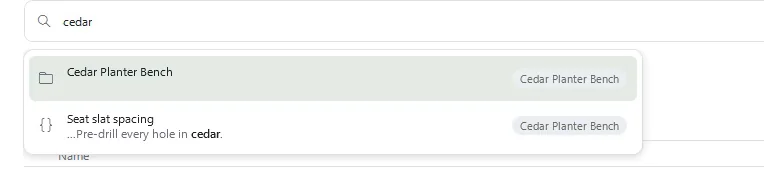
Type in the search box and ClingSpace looks through names, locations, links, snippet text and your context notes. Results are labelled with the Space they belong to, so you can tell the churn query for one project from the churn report for another. A scope switch narrows the same search to the Space you are in.
Put things in the order you think in
Order is information. Drag items within a Space to put the brief first and the archive last, and drag Spaces in the sidebar to keep this week’s projects on top. Adding and removing is cheap, because taking something out of a Space never touches the original.
Shared resources, without duplicates
Some files belong to more than one project: a receipts folder, a style guide, a master workbook. Add it to each Space it belongs to. It stays one file on disk, and a small chip beside it lists every Space that includes it. A context note you write on the resource is shared too.
When files move or are renamed
Reorganizing folders is normal, and it should not silently break your projects. ClingSpace can often continue following supported files and folders after a rename or move. If it cannot confidently locate something it marks the item as unavailable and offers Find File or Find Folder, and if a different file now sits at the old location it can warn you that the file has changed instead of quietly attaching the wrong one.
What it deliberately does not do
ClingSpace does not rename, sort or move your files, does not auto-tag them, and does not read their contents. Organization here is something you decide and see, not something done to your folders behind your back. It also does not sync Spaces between computers or share them with other people. The why is covered in the local-first page.
Frequently asked questions
What can I search for?
Names, locations, links, snippet text and your own context notes, across all Spaces or within the current one. ClingSpace does not index the contents of your files.
Can I reorder files inside a Space?
Yes. Drag items into the order you want. You can also reorder the Spaces themselves.
Can I add an entire folder?
Yes. A folder is added as one item that stands for the folder.
What does the 1 Space chip mean?
It shows that a resource belongs to more than one Space and lists which ones.
Does it fix broken links to moved files?
It can often follow supported files and folders that were renamed or moved. When it cannot, it marks the item unavailable and helps you find it again.
Try it on a real project
Every feature is unlocked for 5 days. Keep ClingSpace afterwards with a one-time $19.99 license, or simply stop; your Spaces stay on your PC either way.
5-day full trial, every feature • $19.99 one-time • Direct license for up to 3 of your PCs