
A Windows project organizer for work that lives in more than one folder
ClingSpace gives every project one Space: a single list of the files, folders, links and notes that belong together, wherever they are on your PC. Nothing is moved, copied or uploaded.
5-day full trial • $19.99 one-time • Windows 10 (22H2) and 11, 64-bit
Why a folder tree stops working for real projects
Folders are a good answer to one question: where is this file stored? Projects ask a different question: what belongs together? Those two answers drift apart quickly.
Take a quarter-end revenue dashboard. The Power BI report lives in a OneDrive folder because the team opens it from there. The SQL and data extracts sit in a Projects folder on the same PC. The requirements document is still in Downloads, because that is where the email attachment landed. A few weeks later you remember the project clearly and cannot remember which of those three places holds the file you need.
Moving everything into one folder looks tidy, but it has costs. Other tools and colleagues still point at the old locations, the OneDrive copy is there for a reason, and the next attachment lands in Downloads again anyway. Most people end up with a folder structure that is correct for storage and unhelpful for the actual work.
One project, one view: how a Space works
In ClingSpace you create a Space for a project and add the things that belong to it: files, folders, links and snippets. Each file or folder appears in the Space with its name, its real location and its type, so you can see at a glance where everything actually lives.
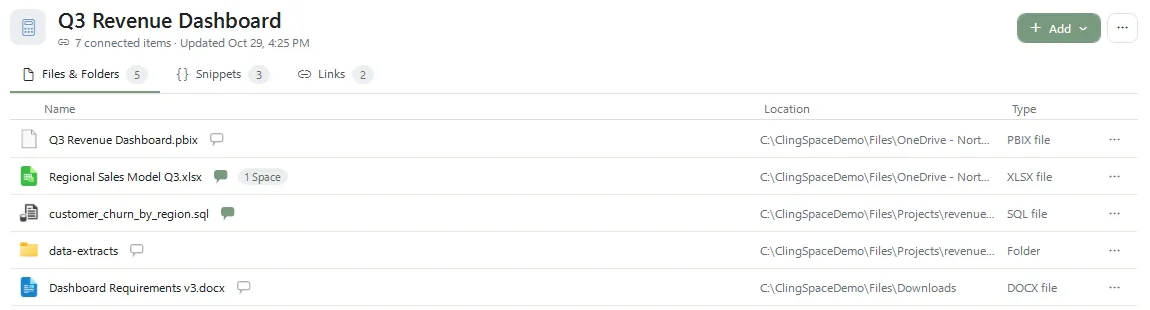
The Space stores the map, not the files. The originals stay in Documents, Downloads, OneDrive or wherever they were, and ClingSpace never moves, copies or edits them just because you added them. Removing an item from a Space removes the reference only.
What a project looks like in practice
The same idea covers very different projects. A few examples of Spaces you might create:
- A work deliverable such as a revenue dashboard: the report, its source workbook, the SQL, the extracts folder and the brief, plus two reference links and three saved snippets.
- A home project such as a kitchen refresh: quotes and receipts folders, measurements, product links and the contractor’s PDF.
- A hobby build such as a cedar planter bench: plans, a cut list, a folder of build photos and the lumber order.
Each Space keeps its own items in the order you choose, and you switch between Spaces from the list on the left. One app can hold as many projects as you have.
More than files: links, snippets and context
A project is rarely only documents. ClingSpace lets a Space also hold the web pages you keep going back to, reusable text such as SQL or reminders, and short notes about why a particular file matters.

That note is attached to the resource, so if the same file belongs to two Spaces, the note follows it into both.
Find it again
Search works across every Space at once, and each result shows which project it belongs to. Or narrow the search to the Space you are in. It matches names, locations, links, snippet text and your own context notes. You can try it in the project file organizer guide.
What this kind of organizer does not do
Being clear about limits is part of being useful. ClingSpace does not move or rename your files, tidy your folders, sync Spaces between computers, share them with other people or back up your documents. Its local backups protect ClingSpace’s own data (your Spaces), not the original files. It is a personal Windows app for seeing a project as one thing.
If you want to know where your data goes, read how the local-first design works.
Try it on one real project
- Install ClingSpace for Windows 10 (22H2) or Windows 11, 64-bit. No account is needed.
- Create a Space named after a project you are working on this week.
- Add what belongs to it by dragging files and folders in from Explorer, or with the Add menu.
- Leave the originals alone. Keep using your folders as you always have; the Space just gives you one place to start from.
Frequently asked questions
Does ClingSpace replace File Explorer?
No. Explorer is still where your files live and where you manage them. ClingSpace adds a project view on top: each item in a Space opens in its default program, and the original stays in its own folder.
Can I include files from OneDrive?
Yes, as long as the file or folder has a location on your PC. ClingSpace stores that location. It does not sync, upload or manage OneDrive itself.
Which versions of Windows are supported?
64-bit Windows 10 (22H2) and Windows 11.
What does it cost?
You can use every feature free for 5 days. After that ClingSpace is a one-time $19.99 license, with no subscription.
Do I need an account?
No. Install it and start. A license key is only needed after the trial.
Try it on a real project
Every feature is unlocked for 5 days. Keep ClingSpace afterwards with a one-time $19.99 license, or simply stop; your Spaces stay on your PC either way.
5-day full trial, every feature • $19.99 one-time • Direct license for up to 3 of your PCs